

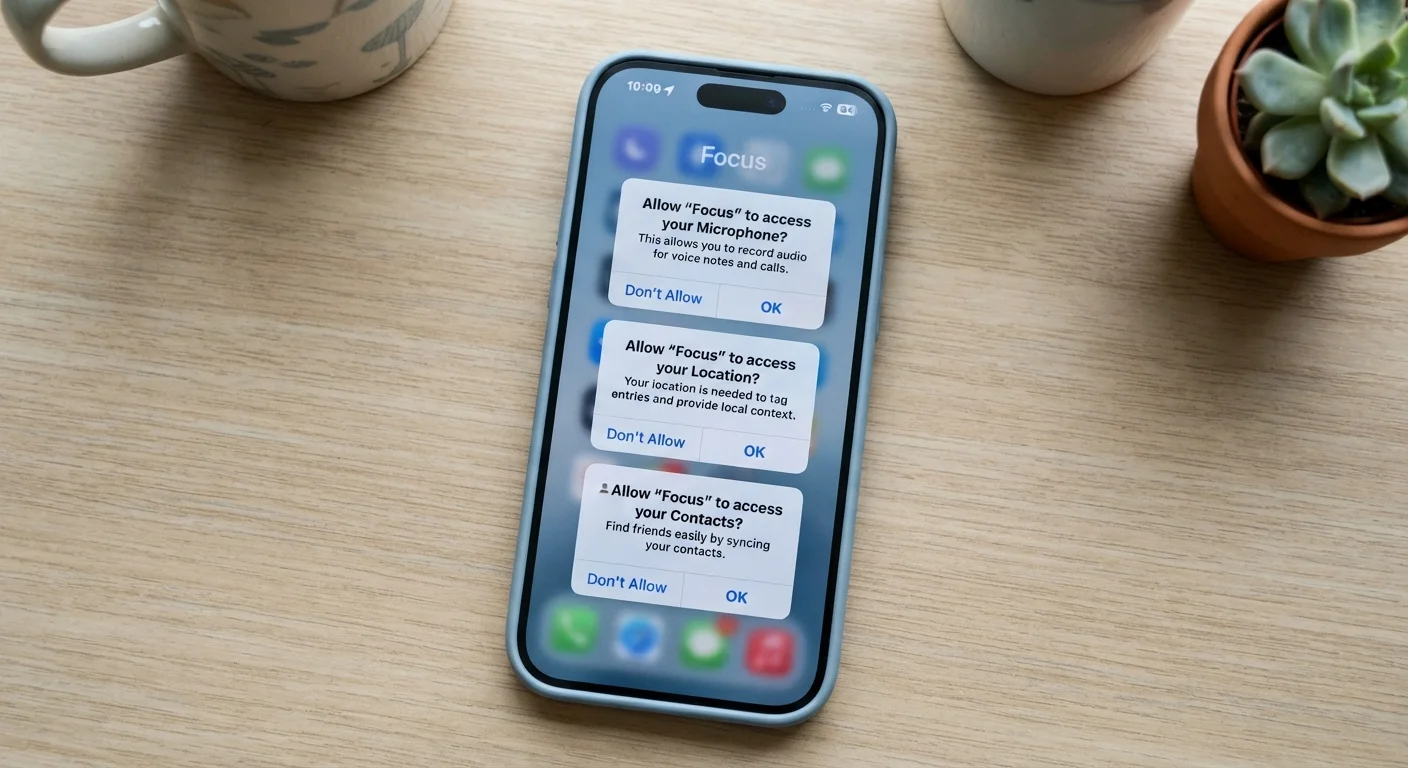
The Most Common Permissions — and What They Actually Access
When an app asks for permission, it's requesting a specific gateway into your device. Here's what the most frequently requested permissions actually open up:
- Camera: Lets the app capture photos and video directly through your device's camera hardware. Necessary for apps like video chat or document scanning — but a red flag in, say, a calculator.
- Microphone: Allows the app to record audio at any time while access is active. Voice assistants and call apps need this; most others don't.
- Location: Shares your device's GPS coordinates. Many apps offer tiered options — "while using the app," "once," or "always" — each with different privacy implications.
- Contacts: Reads your entire address book, including names, phone numbers, and email addresses of people who never consented to share their data with that app.
- Storage / Files: Grants the ability to read, write, or delete files on your device. Photo editors need this; most games do not.
- Notifications: Enables the app to send you alerts. This is lower risk from a data perspective but directly affects your attention and phone experience.
Understanding what each permission opens up makes it easier to evaluate whether a request is reasonable — or excessive. This connects directly to the broader question of what personal data you're sharing without realizing it.
Permissions Don't Cover All Data Collection
Granting or denying permissions controls hardware and system-level access, but apps can still collect behavioral data — what you tap, how long you stay on a screen, what you search — without any explicit permission. For a fuller picture of what's being gathered, see our article on the privacy trade-offs of free apps and online services.
How to Think About "Necessary" vs. "Suspicious" Requests
Not every permission request is a problem — the key is whether it matches the app's actual function. A navigation app requesting location makes obvious sense. A recipe app requesting your contacts does not.
Apply a simple test: Would removing this permission make the app's core feature stop working? If the answer is no, the permission is likely not essential.
A few patterns worth watching for:
- Permissions requested upfront with no explanation: Reputable apps typically explain why they need access before asking. No explanation is a warning sign.
- Permissions unrelated to the app's purpose: A wallpaper app requesting microphone access has no obvious justification.
- Requests that appear after an update: App updates sometimes introduce new data collection. Review changed permissions when prompted. Our article on what happens when you update apps covers this further.
Start With "Deny" and Work Backward
When an app requests a permission you're unsure about, deny it first and see whether the feature you actually want still works. If the app prompts you again with a clear explanation of why it needs access, you can reconsider. This approach puts you in control rather than defaulting to trust.
How to Review and Revoke Permissions on Your Device
Both major mobile platforms give you full control over permissions after installation — most people simply don't know where to look.
On iPhone (iOS): Go to Settings → scroll to the app name → tap it to see every permission it holds and toggle them individually. Alternatively, go to Settings → Privacy & Security to see which apps have access to each resource category (e.g., all apps with microphone access listed together).
On Android: Go to Settings → Apps → select the app → Permissions. You can also navigate to Settings → Privacy → Permission Manager to audit by category.
A worthwhile habit: do a permissions audit every few months, especially after installing new apps. Remove access that no longer makes sense — for example, a travel app you used once still holding location access.
45%
Apps requesting more permissions than needed
Research from the International Computer Science Institute found that a significant share of Android apps request permissions not required by their stated functionality.
3 in 4
Apps that track users across other apps
A study published in the journal PLOS ONE found that a large majority of free Android apps include third-party tracking code, often operating within granted permissions.
1 in 3
Users who never review app permissions
Consumer surveys consistently show that a substantial portion of smartphone users have never audited which permissions their installed apps hold.
Before installing anything new, see our pre-install checklist for a structured review process that includes permissions alongside other key factors.
Permissions and Sensitive Data: A Higher-Stakes Category
Some permissions carry greater personal risk than others because of what the underlying data reveals. Location history can expose where you live, work, worship, or receive medical care. Contact lists contain data about other people — friends, family, colleagues — who never agreed to share their information with a third-party app.
Health and fitness apps occupy a particularly sensitive space. They may request access to HealthKit (iOS) or Google Health Connect (Android) data — heart rate, menstrual cycle, sleep patterns — that carries real-world implications if shared or sold. Our explainer on health tracking apps and your medical data covers the specific protections that do — and don't — apply to this category.
Permissions are also only one part of the privacy picture. Free apps often collect data well within the permissions you've granted and use it in ways that aren't immediately obvious. Understanding those trade-offs is covered in depth in The Privacy Trade-Offs Built Into Free Apps.
“Permissions are the contract between users and apps. When an app asks for more than it needs, that contract is being stretched — and users deserve to know what they're agreeing to.”
— Lorrie Faith Cranor, Professor of Computer Science and Engineering and Public Policy, Carnegie Mellon University
The bottom line: treat sensitive permissions the same way you'd treat handing someone a spare key. Give access only when the purpose is clear, the app is trustworthy, and the access level is proportionate to the task.
Frequently Asked Questions
Yes. On both Android and iOS, you can go to your device's Settings, find the app, and toggle individual permissions on or off at any time. Revoking a permission takes effect immediately without uninstalling the app.
The app will be unable to access that specific feature or data. Most apps continue to function with limited capability — for example, a shopping app denied location access can still let you browse and purchase, but won't auto-fill your nearest store. Occasionally an app will ask again or explain why the permission is needed.
It almost certainly doesn't. A flashlight app only needs access to your camera's flash LED. Requests for unrelated permissions like the microphone or contacts are a red flag that the app may be collecting data beyond its stated purpose.
Generally, yes. "While using" limits location access to moments when the app is open and active on your screen. "Always" allows background location tracking even when the app isn't visible, which carries a higher privacy impact.
They can. Permissions like location (especially background) and background refresh allow apps to run processes when you're not actively using them, which consumes battery. See our <a href="/tech-electronics/apps-software/the-quiet-ways-apps-drain-your-phone-battery">guide to app battery drain</a> for more detail.
The underlying categories are similar — camera, microphone, location, contacts, storage — but the controls differ. iOS tends to offer more granular options (like "ask every time") while Android's options vary somewhat by device manufacturer and OS version.
The content on this site is for informational purposes only and is not a substitute for professional advice. Always consult a qualified professional for guidance specific to your situation.