

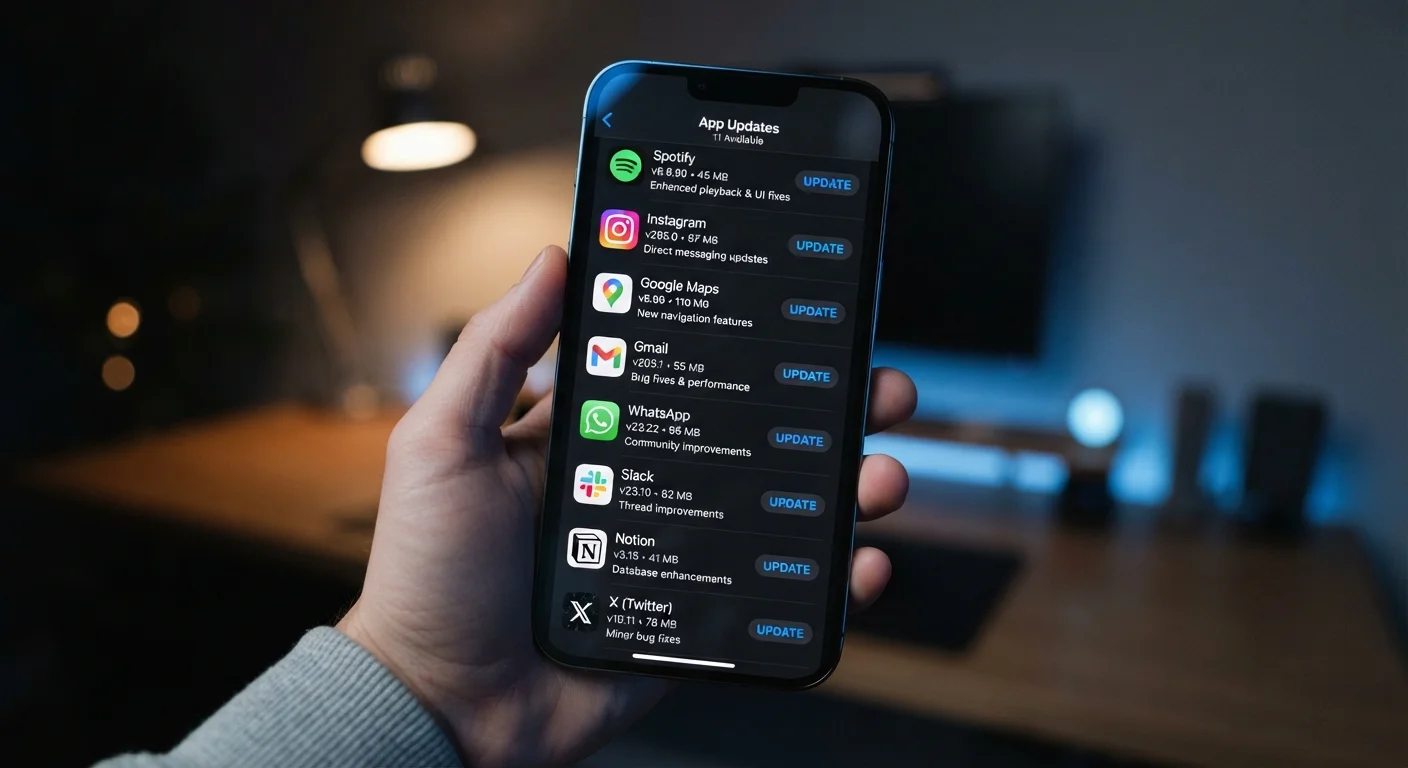
What App Updates Actually Contain
When a new version of an app arrives on your device, it typically bundles several distinct types of changes at once. Understanding what's inside helps you treat updates as tools rather than interruptions.
- Security patches: Fixes for vulnerabilities — flaws in the code that could allow unauthorized access to data or device functions.
- Bug fixes: Corrections for crashes, freezes, or unexpected behavior that users have reported or developers have detected.
- Performance improvements: Optimizations that reduce memory use, speed up loading, or reduce battery drain.
- New features: Additions to functionality, sometimes optional, sometimes replacing existing workflows.
- Compatibility updates: Adjustments ensuring the app works correctly with a new operating system version or new device hardware.
Most updates contain a mix of these categories. The proportion varies — a point release (e.g., version 4.2.1) typically skews toward fixes, while a major version jump often brings feature changes alongside security work.
60%
Of mobile breaches exploit known vulnerabilities
Industry cybersecurity analyses consistently find that a majority of successful mobile attacks target flaws that already have published patches available.
1 in 3
Users regularly delay or ignore app updates
User behavior surveys indicate roughly a third of smartphone owners frequently postpone available updates for days or weeks.
The Security Case for Updating Promptly
Security patches are the single strongest argument for keeping apps current. When a vulnerability is discovered, the timeline works against you: researchers or attackers find a flaw, the developer issues a fix, and that fix — once released — signals to the broader security community exactly what was broken. Anyone still running the old version becomes a clearer target.
This pattern is particularly consequential for apps that handle sensitive data: banking apps, email clients, password managers, health apps, and messaging platforms. A flaw in any of these could expose login credentials, financial account access, or private communications.
Unpatched Apps Are Active Security Risks
Running outdated versions of sensitive apps — especially banking, email, and messaging — means known vulnerabilities remain exploitable on your device. Once a patch is publicly released, the flaw it addresses becomes widely known in security circles. Delaying that update on a sensitive app is a meaningful risk, not a minor inconvenience.
For broader context on how apps interact with your data beyond updates, the online safety hub covers foundational practices worth understanding alongside your update habits.
Apps that access your microphone, camera, location, or contacts carry additional risk when unpatched. See our guide on what app permissions actually mean to understand what's at stake beyond the update itself.
Prioritize updating apps that handle authentication or payments before anything else — these are the highest-value targets for attackers and typically the fastest to receive patches.
Banking, password manager, and two-factor authentication apps sit at the core of your digital security. A vulnerability there has cascading consequences across other accounts.
On iOS, use the App Store's "Version History" view to see what previous updates contained — this helps you spot whether a developer communicates transparently or uses vague language to obscure significant changes.
Developers who describe updates honestly (e.g., naming specific fixes) tend to have more accountable practices overall than those who routinely post only "bug fixes and performance improvements."
When Updates Change More Than You Expect
Not every update is a welcome improvement. Developers occasionally use updates to revise privacy policies, expand data collection, alter permissions, or remove features that users relied on. This happens more often than most people realize — and it's a legitimate reason to read changelogs before tapping "Update All."
Things worth watching for in changelogs or app store release notes:
- New permissions requested: If an app suddenly wants access to your contacts or location after an update, that's a signal worth investigating.
- Changes to data sharing: Some updates introduce or expand third-party data sharing agreements.
- Feature removal or paywalling: Free features may shift behind a subscription tier.
- Interface overhauls: Major redesigns can disrupt established workflows, especially for accessibility users.
If you're evaluating whether an app still earns its place on your device after a major update, our guide to auditing your apps offers a useful framework for deciding what stays and what goes.
"Update All" Can Introduce Unwanted Changes
Bulk-updating all apps at once means accepting any permission expansions, data policy changes, or feature removals without review. For apps that touch your location, contacts, or financial data, it's worth spending a moment on the changelog before confirming the update. This is especially true after an app changes ownership or undergoes a major rebranding.
Auto-Updates vs. Manual Updates: How to Decide
Both Android and iOS allow you to enable automatic app updates, and for most users, auto-updating is a reasonable default. It removes friction and ensures security patches apply without requiring you to remember. But there are situations where manual control makes more sense.
Auto-updates work well when:
- You use apps from established developers with consistent, trustworthy update histories.
- You prefer convenience over fine-grained control.
- You're on a reliable Wi-Fi connection and storage isn't constrained.
Manual updates make sense when:
- You rely on a specific app version for a professional workflow and a major update could break it.
- You want to read changelogs before changes apply.
- You've had past experiences where an update degraded app performance on your device model.
A middle path used by many experienced users: enable auto-updates for most apps, but manually manage a short list of mission-critical or privacy-sensitive apps. Both iOS and Android let you disable auto-updates on a per-app basis.
Building a Smarter Update Habit
Treating updates reactively — tapping through a backlog when storage gets tight — leaves gaps. A more deliberate approach is straightforward to implement.
Practical steps:
- Review pending updates weekly rather than letting them pile up for months.
- For apps with sensitive data access, open the release notes before updating — most app stores display these in the update queue.
- After a major update to any app, spend 60 seconds confirming that permissions haven't changed unexpectedly. On both iOS and Android, you can view current permissions in Settings under the app's entry.
- If an update introduces features or data practices you don't want, weigh whether to keep the app at all. Our pre-install checklist applies equally well to deciding whether to keep an app post-update.
Staying current with app updates is one part of a broader digital hygiene practice. Understanding how Android and iOS manage their app ecosystems differently also shapes how updates are delivered and what control you have over them.
Schedule a Monthly App Review
Set a recurring reminder once a month to open your app store's update queue, skim changelogs for any sensitive apps, and apply outstanding updates. This small habit closes security gaps consistently without requiring daily attention. Pairing it with a quick check of which apps you haven't opened in 90 days keeps your device lean and easier to manage.
This article is for general informational purposes only and does not constitute security, legal, or professional advice. Specific security needs vary by device, app, and individual circumstances.
The content on this site is for informational purposes only and is not a substitute for professional advice. Always consult a qualified professional for guidance specific to your situation.