

Start here
What Is Two-Factor Authentication?
Build understanding
The Three Types of Authentication Factors
Compare options
Common 2FA Methods: How They Compare
Take action
How to Enable 2FA on Your Accounts
Go deeper
When 2FA Alone Isn't Enough
What Is Two-Factor Authentication?
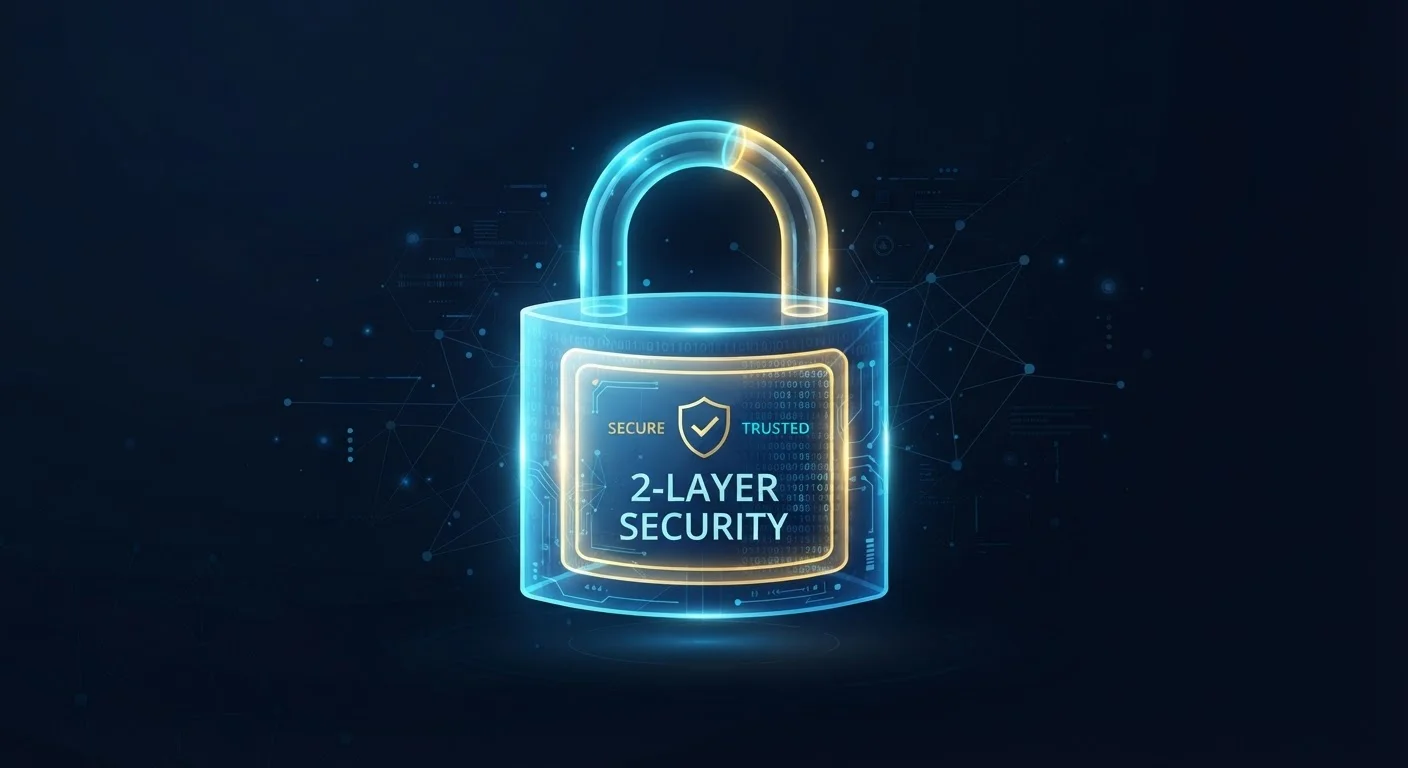
A password is a single lock. If someone picks it — through a data breach, a phishing email, or simply guessing — your account is open. Two-factor authentication (2FA) adds a second, independent lock: even if your password is compromised, an attacker still needs to pass a second verification step they almost certainly don't have access to.
The concept follows a simple security principle: combine something you know (your password) with something you have (a phone or security key) or something you are (a fingerprint). All three categories together are called authentication factors.
Two-factor authentication (2FA)
A login process that requires two separate proofs of identity — typically your password plus a one-time code or physical device — before granting account access.
One-time password (OTP)
A temporary numeric code that is valid for a very short window (usually 30 seconds to a few minutes) and can only be used once, making it much harder to steal and reuse.
Authenticator app
A smartphone application that generates time-sensitive login codes locally on your device, without sending them over a network where they could be intercepted.
SIM swapping
A fraud method where an attacker convinces a mobile carrier to transfer your phone number to a SIM card they control, allowing them to receive your SMS verification codes.
Hardware security key
A small physical device — typically USB or NFC — that you insert or tap to verify your identity. It's considered phishing-resistant because it cryptographically confirms it's communicating with a legitimate website.
Passkey
A modern login technology that replaces passwords entirely by using cryptographic keys stored on your device, verified by your biometric or PIN — with no shared secret to steal or phish.
For a broader look at building secure online habits, see our guide to security habits experts actually practice.
The Three Types of Authentication Factors
Every 2FA method draws from one of three categories:
- Knowledge factors — things you know, like a password, PIN, or security question answer.
- Possession factors — things you physically have, such as a phone that receives a code, or a hardware security key plugged into your computer.
- Inherence factors — things you are, meaning biometrics like a fingerprint, face scan, or voice recognition.
True two-factor authentication combines factors from two different categories. A password plus a one-time code from an app is genuinely two-factor. A password plus a PIN is technically two knowledge factors — which is why it's considered weaker in security design.
Common 2FA Methods: How They Compare
Not all second factors are equally strong. Here's how the most common options stack up:
| Method | How it works | Relative strength |
|---|---|---|
| SMS text code | A one-time code is texted to your phone number | Basic — vulnerable to SIM-swapping |
| Authenticator app | An app generates a rotating 6-digit code every 30 seconds | Strong — code never leaves your device |
| Push notification | Your phone displays a prompt to approve or deny a login | Strong — simple to use; verify the request is yours |
| Hardware security key | A physical USB or NFC device you tap or insert | Very strong — phishing-resistant by design |
| Biometric (device-based) | Fingerprint or face scan unlocks access on a trusted device | Strong — depends on device security settings |
Start With an Authenticator App
If your service supports it, choose an authenticator app over SMS as your second factor. These apps work even when your phone has no cellular signal, and codes never travel across a network. Popular app stores list several well-reviewed options — look for apps that support encrypted cloud backup of your accounts in case you switch phones.
Authenticator apps — software that generates time-sensitive codes — are widely regarded as a solid everyday choice because codes are generated locally on your device and never transmitted over a cellular network.
How to Enable 2FA on Your Accounts
Enabling 2FA typically takes under five minutes. The process is similar across most services:
- Sign in and open Account Settings or Security Settings.
- Look for a section labeled Two-Factor Authentication, Two-Step Verification, or Login Security.
- Choose your preferred second factor from the available options.
- Follow the on-screen setup steps — if using an authenticator app, you'll scan a QR code.
- Save your backup codes somewhere secure, such as a printed document or your password manager.
Don't Skip Saving Backup Codes
When you enable 2FA, most services display a set of one-time backup codes. These are your only way back in if you lose your phone or authenticator app. Write them down or store them in your password manager immediately — services will not show these codes again after setup is complete.
Prioritize your email account above all others, since it controls password resets for nearly every other service you use. After that, secure financial accounts, cloud storage, and social media. A personal digital security checklist can help you track which accounts you've already secured.
Pairing 2FA with a strong, unique password for every account is equally important. Our introduction to password managers explains how to manage unique passwords without memorizing them all.
When 2FA Alone Isn't Enough
Two-factor authentication significantly raises the bar for attackers, but it isn't a complete solution on its own. A few important limitations to understand:
- Real-time phishing attacks can sometimes relay one-time codes before they expire. If you ever receive an unexpected login request, deny it and change your password immediately.
- Malware on your device can intercept codes after they arrive. This is why device hygiene matters — see our device security practices guide for habits that reduce this risk.
- Recovery account weaknesses — if your backup email or recovery phone number isn't also secured, an attacker can use those to bypass 2FA entirely.
For accounts containing highly sensitive information — financial records, healthcare data, or business systems — consider hardware security keys or passkeys, which are designed to be resistant to phishing by cryptographically verifying the legitimate website. These represent the current strongest option available to everyday consumers without specialized IT support.
Ultimately, 2FA works best as one layer in a broader security posture — alongside strong unique passwords, a reliable password storage approach, and consistent awareness of phishing tactics.
This article is for general informational purposes only and does not constitute professional security advice. Security best practices evolve over time; consult cybersecurity resources from established organizations for guidance tailored to your specific situation.
Frequently Asked Questions
Two-factor authentication (2FA) is a security step that requires you to verify your identity in two separate ways before you can log in. Typically, that means your password plus a temporary code from your phone or app. If someone steals your password, they still can't get in without that second factor.
SMS 2FA is far better than no 2FA at all, but it has known weaknesses — including SIM-swapping attacks where a fraudster tricks a carrier into redirecting your number. For most accounts, it's an acceptable starting point, but using an authenticator app is a stronger choice whenever it's available.
Yes. Some services allow 2FA via email, voice call, or a printed set of backup codes. Hardware security keys — small USB or NFC devices — are another option that doesn't require a phone at all. Check what methods a specific service supports in its security settings.
Most services provide backup codes when you first enable 2FA — save these in a secure place. You can also add a secondary 2FA method (such as a backup phone number) in advance. If you're fully locked out, account recovery processes exist, though they typically take extra time to verify your identity.
Start with your email account — it's the master key to everything else, since most services reset passwords by sending an email. Then secure financial accounts, cloud storage, and social media. Any account that holds sensitive personal data or payment information deserves 2FA.
Standard 2FA reduces phishing risk considerably, but some sophisticated attacks can still intercept one-time codes in real time. Phishing-resistant methods like hardware security keys or passkeys eliminate this risk by cryptographically binding verification to the legitimate site.
The content on this site is for informational purposes only and is not a substitute for professional advice. Always consult a qualified professional for guidance specific to your situation.