

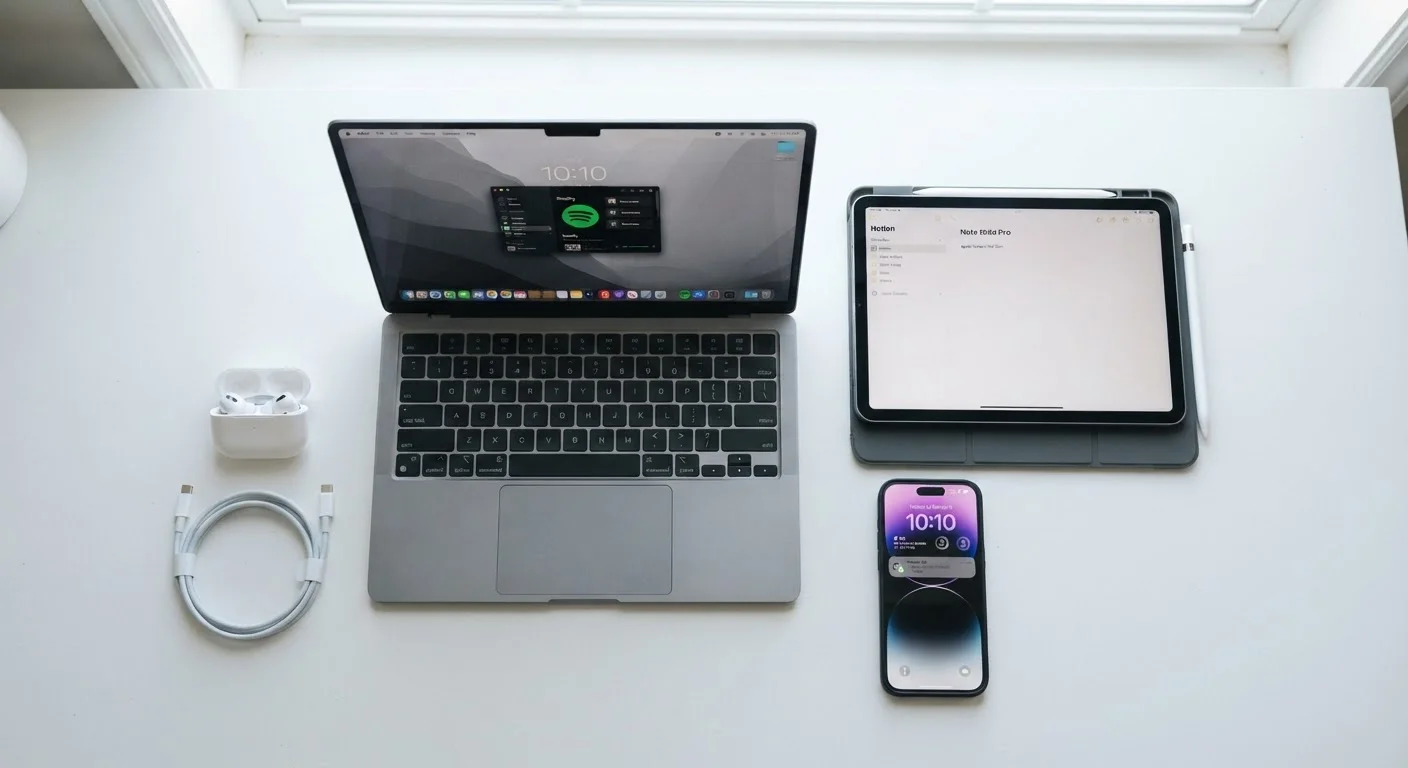
Unboxing and First Setup: Starting Off Right
The decisions you make in the first hour with a new gadget shape how well it performs for years. Before diving into features, run any pending software updates — manufacturers regularly patch security vulnerabilities and fix bugs before devices even reach store shelves.
Create or sign into an account that enables device-tracking and remote-wipe capabilities. On smartphones and tablets, this is typically tied to your platform account (such as Apple ID or Google Account). On laptops, enable full-disk encryption if your operating system supports it — this protects your data if the device is ever lost or stolen.
Set a strong screen lock and review default privacy settings. Many devices ship with location sharing, ad personalization, and diagnostic data collection enabled by default. Spend a few minutes in the settings menu deciding what you actually want on.
First-Setup Checklist Worth Bookmarking
Run software updates, enable device tracking, set a strong screen lock, and review privacy settings before using any new gadget for personal tasks. This one-time investment of 15–20 minutes closes the most common security gaps right from the start.
For a deeper look at how long your new device is likely to serve you, see our gadget lifespan guide — it covers average lifespans for smartphones, laptops, and smart home devices.
Day-to-Day Maintenance That Actually Matters
Consistent small habits prevent the gradual decline most people attribute to aging hardware. Storage management is one of the highest-impact habits: when a device's internal storage is nearly full, performance drops noticeably. Keeping at least 15–20% of storage free gives the operating system room to work.
Clean charging ports and headphone jacks periodically using a dry, soft brush or a can of compressed air. Debris buildup is a leading cause of charging problems that users often misdiagnose as battery failure. Screen protectors and cases meaningfully reduce damage from everyday drops and scratches.
Battery health deserves specific attention. Lithium-ion batteries — found in nearly every modern device — last longer when kept between roughly 20% and 80% charge rather than regularly cycled from zero to 100%. Many devices now include settings to limit charging to 80% for exactly this reason.
Disable 'optimized charging' overrides when you know you'll need a full charge, but leave the feature on for everyday use — it meaningfully extends the number of healthy charge cycles your battery can complete.
Lithium-ion batteries degrade with each full charge cycle; keeping them from regularly hitting 100% slows that degradation and extends useful battery life over the device's lifetime.
When a device slows down, check background app refresh settings before assuming a hardware problem — disabling refresh for apps that don't need real-time updates frees up both processing power and battery.
Background processes are one of the most common and least visible causes of sluggish performance on both iOS and Android devices, yet they're adjustable in minutes without any technical expertise.
Troubleshooting Common Problems Without a Tech Degree
A surprising number of device problems — sluggish performance, app crashes, connectivity dropouts — resolve with a simple restart. Modern devices rarely get fully powered down, and a reboot clears temporary files and resets background processes.
If a restart doesn't help, check for software updates. Buggy app or OS versions cause most recurring issues, and an update is frequently the only fix required. For Wi-Fi or Bluetooth problems specifically, toggling the connection off and back on (or forgetting and re-pairing the network/device) resolves the majority of cases.
Before escalating to a factory reset, back up your data and try removing recently installed apps — they're a common source of instability. Factory resets should be a last resort, not a first response.
App Overload Affects More Than Speed
Unused apps don't just slow devices down — they can create ongoing security vulnerabilities if they stop receiving updates. Periodically reviewing your installed apps is a maintenance task, not just a tidying exercise. Most users find they actively use far fewer apps than they have installed.
Keeping apps lean also pays dividends. Our guide on auditing the apps on your devices walks through a practical process for deciding what to keep and what to remove.
Storing Devices Safely When Not in Use
Gadgets deteriorate even when sitting in a drawer. Heat is the primary enemy: storing devices in places that regularly exceed 95°F (35°C) — such as a car glove box or a garage in summer — accelerates battery degradation and can damage internal components.
For long-term storage (several weeks or more), charge lithium-ion batteries to approximately 50% before putting the device away. A fully charged or fully depleted battery stored for extended periods loses capacity faster than one stored at a mid-range charge level.
Use the original case or a snug-fitting alternative to prevent dust accumulation in ports, and store devices away from humidity. Silica gel packets placed in storage containers help absorb excess moisture in damp climates.
50%
Ideal charge level for long-term device storage
Battery researchers and major device manufacturers generally recommend storing lithium-ion batteries at around 50% charge to minimize long-term capacity loss.
53.6M
Metric tons of e-waste generated globally per year
According to the UN's Global E-waste Monitor, the world generated approximately 53.6 million metric tons of electronic waste in a single recent year, with only a fraction formally recycled.
15–20%
Free storage to maintain for optimal performance
Device performance degrades noticeably when internal storage falls below this threshold, as operating systems need headroom for temporary files and system processes.
Knowing When It's Time to Move On
Gadgets reach end-of-useful-life in two distinct ways: physical degradation (cracked screens, swollen batteries, failed ports) and software obsolescence (no longer receiving security updates). The second category is often overlooked but carries real risk — a device running an unsupported operating system is vulnerable to security threats regardless of how well it functions physically.
Swollen batteries are a safety concern and should prompt immediate action. A battery that visibly bulges or causes the device casing to separate should not continue to be used; many manufacturers and third-party repair shops will replace it for a fraction of the replacement device cost.
Thinking about the cost of ownership over time connects gadget decisions to broader financial habits. Our hub on saving and managing debt explores how consumer spending decisions fit into a larger financial picture. Similarly, the logic of buying less but better — covered in our article on fast fashion trade-offs — applies equally well to electronics.
Responsible Disposal and Recycling
Consumer electronics contain materials — including lead, mercury, cadmium, and lithium — that cause environmental harm when sent to landfill. In the U.S., the EPA estimates that e-waste represents a small fraction of total municipal solid waste by volume but a disproportionately large share of the hazardous materials found in landfills.
Before disposing of any device, perform a full factory reset to erase personal data. For added certainty on computers, use a reputable data-wiping utility that overwrites storage multiple times.
Disposal options include:
- Manufacturer take-back programs: Most major electronics manufacturers offer mail-in or in-store recycling, sometimes with credit toward a future purchase.
- Retailer drop-off: Many large electronics retailers accept old devices regardless of where they were purchased.
- Certified e-waste recyclers: Look for recyclers certified under the e-Stewards or R2 (Responsible Recycling) standards, which verify that materials are handled safely and not exported to countries with inadequate environmental protections.
- Municipal collection events: Many counties and cities hold periodic household hazardous waste and e-waste collection days — check your local government's website for schedules.
Swollen Batteries Are a Safety Emergency
A visibly swollen or bulging battery indicates internal chemical breakdown and presents a fire and puncture risk. Stop using the device immediately, do not attempt to puncture or compress the battery yourself, and contact the manufacturer or a qualified repair technician for safe removal and disposal.
The full ownership picture — from thoughtful setup through responsible disposal — is ultimately about making the most of what you already own, reducing unnecessary spending, and minimizing environmental impact. Like caring for any long-term investment, consistency matters more than perfection.
The content on this site is for informational purposes only and is not a substitute for professional advice. Always consult a qualified professional for guidance specific to your situation.