

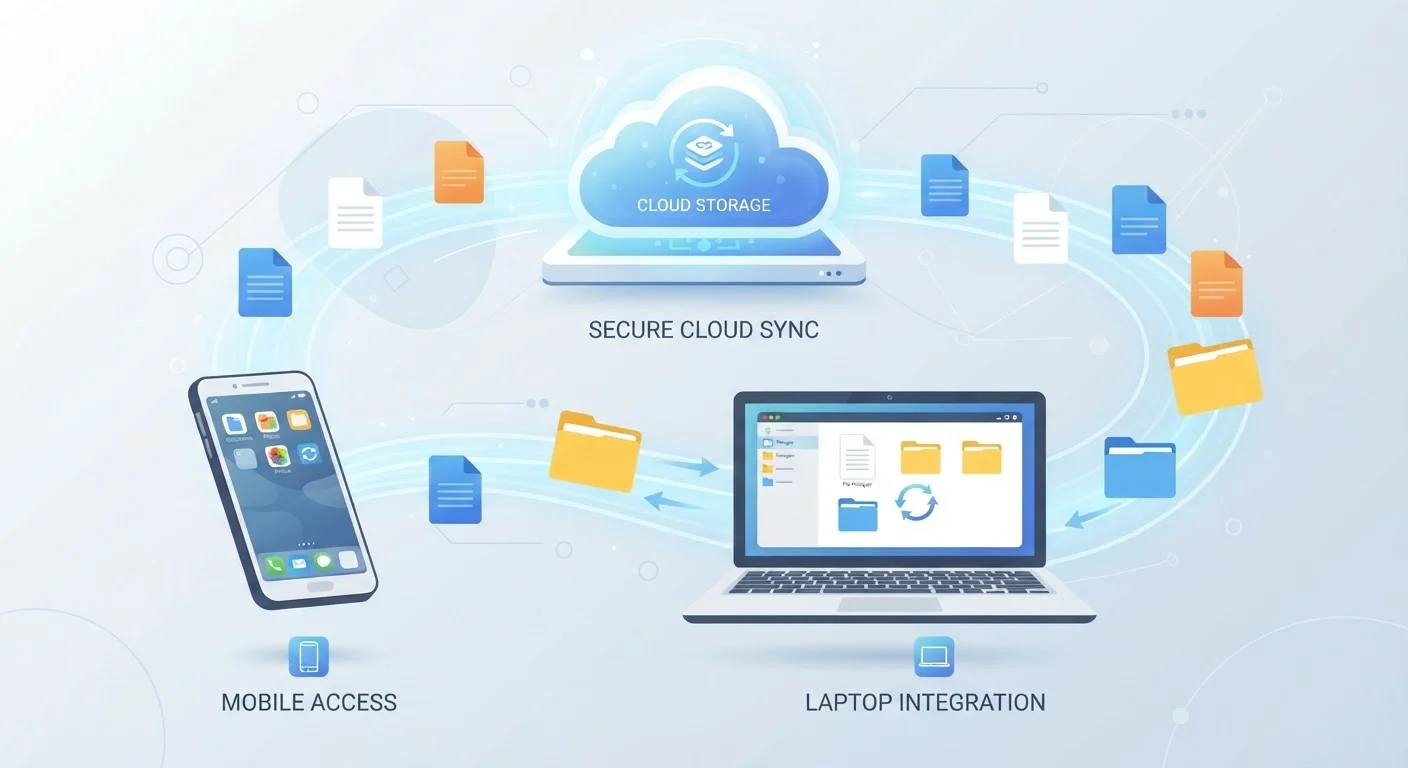
What 'Syncing' Really Means
The word syncing (short for synchronizing) describes the ongoing process of keeping your files consistent across multiple locations — your device and the cloud server. Think of it as a two-way mirror: when you add a photo on your phone, the app notices the change and uploads it to the server. When you open the same account on your laptop, the app downloads that photo so both devices match.
This happens through a background process that monitors a designated folder on your device. Any change inside that folder — a new file, a renamed document, an edit — triggers an update. The speed depends on your internet connection and file size; a short text document syncs in milliseconds, while a large video might take several minutes.
One critical implication: deletion syncs too. If you remove a file from your sync folder, that removal travels to the server and then to every other connected device. Most services retain deleted files in a recoverable trash folder for a set period — commonly 30 days — before permanently erasing them. Knowing that window exists can save you from a frustrating data loss situation.
Check Your Sync Folder Settings Before Deleting
Before clearing out files you think are duplicates or outdated, confirm whether your sync folder is actively connected. Deleting from a synced folder removes files across all connected devices. If you only want to free up local space without losing cloud copies, most apps offer a 'remove from this device' option that keeps the file on the server while clearing it locally.
Where Your Files Actually Live
Despite the airy metaphor, the cloud is very much physical. Your files reside on servers — large banks of computers — housed in data centers that providers operate or rent. Those facilities are located in specific countries, which matters because the laws of that country can govern how your data is handled and what authorities may access it.
When you upload a file, your app compresses and encrypts it, then transmits it over an encrypted connection (typically TLS) to those servers. The server stores your file, usually in encrypted form. Encryption at rest means the file is scrambled while stored, and encryption in transit means it is scrambled while traveling across the internet.
60%+
U.S. internet users who use cloud storage
Pew Research Center surveys consistently find a majority of American adults store data in the cloud, most commonly photos and documents.
30 days
Typical deleted-file recovery window
Most major cloud storage providers retain deleted files in a recoverable state for approximately 30 days on free plans before permanent erasure.
256-bit AES
Common encryption standard used at rest
AES-256 is a widely adopted encryption standard among reputable cloud providers for protecting files stored on their servers.
Most major services hold the decryption keys themselves, which means they can technically read your files if legally compelled or if policy permits it. A smaller category of services — sometimes called zero-knowledge providers — design their systems so only you hold the key. That offers stronger privacy but can mean losing access permanently if you forget your password. Understanding which model a service uses helps you make an informed choice about what to store there. For a broader look at what digital services collect about you, see what data apps and services actually collect.
Sharing Files: What You're Actually Granting
Sharing a file through a cloud storage app does not send someone a copy of that file — at least not right away. Instead, the service grants access to the file on its servers, either through a shareable link or by adding another user's account as a collaborator.
A shareable link is essentially a public door to that file. Anyone with the link can open it, so treat these links the same way you would treat a key to a room. Many services let you set an expiration date on links or restrict access to specific email addresses — using those controls is a straightforward way to limit unintended access.
When you revoke a link, you close that door for future visitors. However, anyone who downloaded the file before revocation retains their copy. There is no reliable technical mechanism to "take back" a downloaded file. This is worth keeping in mind before sharing sensitive documents, financial records, or anything personal. For context on how apps handle sensitive data in general, the article on health tracking apps and your medical data illustrates just how varied data handling can be across different services.
Collaboration Features Vary Widely
Some cloud storage platforms allow multiple users to edit the same document simultaneously, while others simply allow viewing or downloading. If real-time collaboration is important to you — for example, co-editing a shared document — verify that the specific service supports it before committing to a workflow. The feature set can differ significantly even within the same provider's free versus paid tiers.
Free vs. Paid Plans: The Real Trade-Off
Nearly every major cloud storage service offers a free tier with limited storage — commonly between 5 GB and 15 GB — and paid plans that expand that capacity. The business model for free tiers is generally straightforward: the provider hopes you will eventually exceed the free limit and upgrade to a paid subscription.
Unlike ad-supported apps, cloud storage providers typically do not sell your file contents to advertisers. Their terms of service generally prohibit using your stored data for ad targeting. That said, reading the terms carefully matters — providers may collect metadata (file names, access times, device information) that informs their broader data practices. The privacy trade-offs of free apps and online services explains this broader pattern in detail.
If you store a large number of apps and media files across your devices, periodically auditing what you actually need in the cloud is worthwhile. A related practice — reviewing the apps on your devices overall — is covered in this practical guide to auditing your apps.
“The fundamental question with any cloud service is not whether it is convenient — it almost certainly is — but whether you understand what you are agreeing to when you hand over your data.”
— Bruce Schneier, Security technologist and author on data privacy
Frequently Asked Questions
When syncing occurs, your app detects a change — a new file, an edit, or a deletion — and sends that change to the remote server. The server updates its copy, and any other connected device then downloads the updated version. The process is usually automatic and happens within seconds on a stable connection.
Your files stored in the cloud remain on the provider's servers regardless of what happens to your device. However, anyone who can access your account credentials could still reach those files. Using a strong, unique password and enabling two-factor authentication significantly reduces that risk.
Technically, most providers can access your files because they hold the encryption keys, though reputable services state they do not routinely review your content. Some services offer end-to-end or zero-knowledge encryption, meaning only you hold the decryption key. Review the provider's privacy policy to understand what access they retain.
Policies vary by provider, but most give you a grace period — often 30 to 90 days — to download your data before files are deleted from their servers. It is good practice to download a complete backup before canceling any paid plan.
Cloud storage is not the same as a backup, though some services offer backup-specific features. If you accidentally delete a file and syncing propagates that deletion everywhere, the file may be gone unless the service offers version history. Maintaining a separate local backup adds an important safety layer.
When you share a file, the service generates a link pointing to that file on its servers, or grants another user's account access to it. The recipient does not receive a permanent copy unless they explicitly download it. Revoking the link or removing access permissions stops future access but cannot recall a copy someone already downloaded.
The content on this site is for informational purposes only and is not a substitute for professional advice. Always consult a qualified professional for guidance specific to your situation.